AI Interview Assistant: How Live Overlay Tools Work
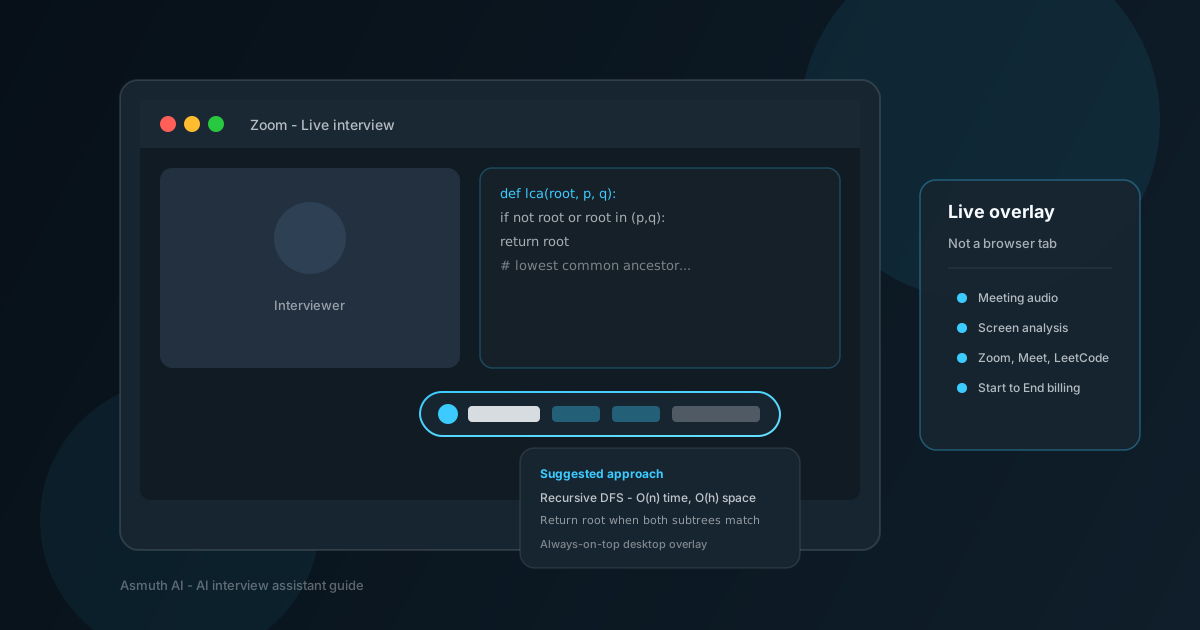
An AI interview assistant is software that takes a live interview question — spoken on a call or shown on your screen — and returns a usable draft: STAR bullets for behavioral prompts, an approach plus code for DSA, or a talking outline for system design. The best ones run as a desktop overlay that stays on top of Zoom, Google Meet, Teams, or a coding window, instead of a separate browser tab you have to alt-tab into.
This guide explains how that category works, how it differs from ChatGPT and browser extensions, and what to expect in coding, behavioral, and screen-share rounds. Asmuth AI is the desktop example throughout — same product facts as the interview landing page, written for people comparing tools before they download.
What is an AI interview assistant?
An AI interview assistant sits between you and the interview format. You still talk, type, and make decisions. The assistant reduces the gap between "I know this" and "I can say it clearly under pressure."
Typical inputs:
- Meeting audio — the interviewer asks a behavioral or system-design question; transcription feeds the model.
- Screen capture — a region of LeetCode, HackerRank, CoderPad, or an IDE shows the problem statement.
- Voice or text — you dictate a follow-up or paste context (resume, job description, notes).
Typical outputs:
- Behavioral — STAR structure, metrics to mention, follow-up angles.
- Coding / DSA — approach, complexity, commented code in markdown.
- System design — requirements checklist, component sketch, trade-offs to verbalize.
Asmuth implements this as an always-on-top pill bar on Windows or macOS. You expand an answer panel, drag the overlay, and use keyboard shortcuts (Ctrl+Shift+M for mic, Ctrl+Shift+A for meeting audio, Ctrl+Shift+S for screen analysis, Ctrl+Shift+H to show or hide). Chats stay local on your machine with signed-in sync; AI runs through Asmuth's secured cloud proxy — no API keys on device.
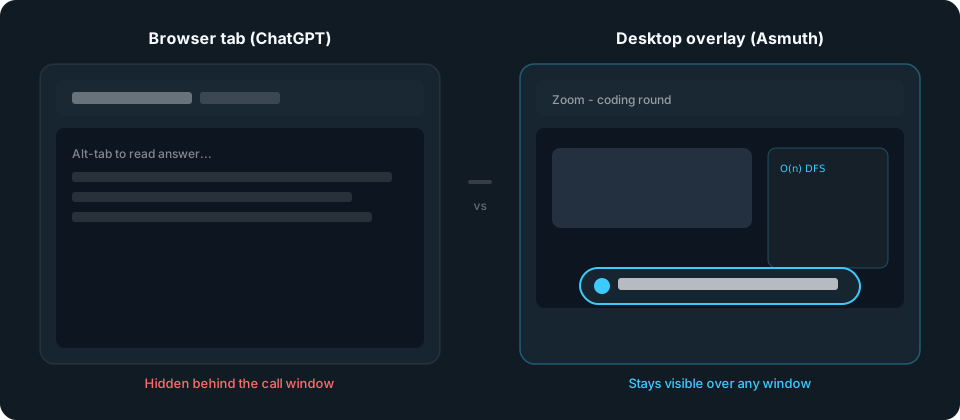
That shape matters because live interviews punish friction. If the tool lives in another window, you lose eye contact, miss the next question, or fumble during a timed coding share.
AI interview assistant vs ChatGPT, notes, and extensions
Most candidates start with a ChatGPT tab, a Google Doc, or a browser extension. Each works for prep. In a live round, the differences show up fast.
| ChatGPT / notes (browser tab) | Desktop overlay (e.g. Asmuth) | Browser extension | |
|---|---|---|---|
| Stays visible over Zoom / Meet / IDE | No — alt-tab or second monitor | Yes — always-on-top pill bar | Sometimes — depends on site |
| Meeting audio transcription | Manual copy-paste | Opt-in system/call capture | Rare |
| Coding window / region capture | Screenshot paste | Streaming screen analysis | Often limited to one site |
| Screen-share stealth | N/A (not on share) | Content protection on many paths; dry-run required | Varies |
| Session billing tied to interview | N/A | Start Interview → End Interview, pause-aware | Varies |
| Platform coverage | Any browser | Any window — no per-app plugin | Per-site |
ChatGPT in a tab is strong for mock prep and rewriting answers the night before. During a call, switching windows breaks flow, and pasted screenshots eat time on hard DSA problems.
Static notes do not adapt when the interviewer asks an unexpected follow-up or changes the constraints on a system-design prompt.
Extensions can inject UI into specific sites (LeetCode, Meet) but rarely combine overlay, audio, region capture, and billing in one desktop session. They also depend on the browser staying open and updated.
Asmuth's bet is one native app for overlay + audio + screen + evaluation, billed per interview session rather than an always-on subscription meter you cannot pause.
Why people use one in a live round
Interview rounds are high-stakes and low-bandwidth. You have minutes to structure an answer while someone watches. Common reasons candidates reach for an assistant:
- Recall under pressure — you studied the material but blank on phrasing. A draft gives you the first sentence so you can speak instead of stall.
- Structure — STAR for behavioral, complexity narration for DSA, requirements-first for design. Structure is what interviewers score even when the raw facts are correct.
- Coding speed — boilerplate, edge cases, and syntax while you explain approach. Screen analysis shines when the problem has multiple parts and you need a coherent plan before typing.
- Language — session language follows the interview; you pick it at start. Useful when you think in one language but the round is conducted in another.
- Follow-ups — custom session instructions plus live prompts when the interviewer pivots ("what if traffic 10x?", "optimize space").
None of this replaces understanding the role or company. The assistant is a draft and structure layer, not an automatic pass. Interviewers still probe depth, ask you to run code, and watch whether you can extend your own answer. The best outcomes come from treating suggestions as talking points you can defend, not scripts you recite.
Asmuth also records spoken answers for evaluation scoring (knowledge, communication, completeness, confidence, independence) when you toggle it in the pill bar — useful for mocks and post-session review, separate from meeting audio transcription. After End Interview, the dashboard breaks down where you sounded strong and where follow-ups exposed gaps — the same dimensions many hiring rubrics use.
How to use one in a session
A typical Asmuth session follows the same rhythm whether the round is on Zoom or in a shared IDE.
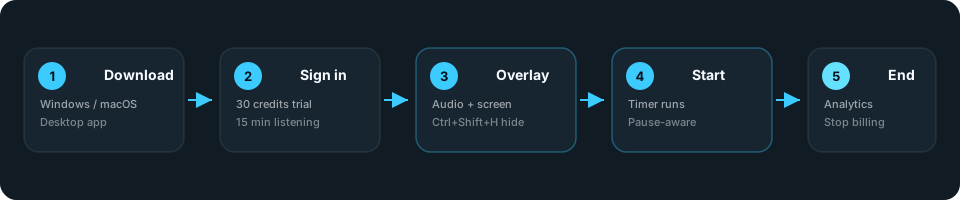
- Download the desktop app for Windows or macOS from the site. Live overlay, stealth, meeting audio, and screen capture are desktop-native — not the marketing website.
- Sign in with the account you created online. The free trial includes 30 AI credits and 15 minutes of meeting audio listening.
- Set session context — language, optional resume upload, custom instructions (team size, stack, role level).
- Open the meeting or coding environment — Zoom, Google Meet, Microsoft Teams, Webex, HackerRank, LeetCode, CoderPad, or VS Code.
- Position the overlay — drag the pill bar where it does not cover the problem statement or your camera tile. Hide or show with
Ctrl+Shift+H. - Start Interview when the round begins. The session timer runs until End Interview and pauses when you pause — no 30-minute block rounding.
- Enable inputs as needed — meeting audio for spoken questions, screen analysis for shared coding windows, mic for your own voice prompts.
- End Interview when the round is over to open analytics and stop billing.
Website vs desktop: the website handles marketing, signup, download links, and pricing packs. The desktop app runs the overlay and interview features. If you only open asmuthai.com in Chrome, you will not get the live assistant experience.
For a product walkthrough with screenshots, see how Asmuth works in interviews.
Coding interviews
Coding rounds combine a visible problem, time pressure, and often screen sharing. An AI interview assistant helps most when it can read the problem without you retyping it.
Screen analysis captures a region of the window — LeetCode-style UI, HackerRank, CoderPad, or VS Code — and streams markdown answers with code highlighting. You still type the solution yourself; the overlay suggests approach, complexity, and a complete commented draft you adapt.
Typical coding-round flow with Asmuth:
- Interviewer shares the problem or you open the IDE link.
- Draw a capture region around the problem text (not your entire monitor — keeps capture fast and credits lower).
- Read the suggested approach aloud while you implement — interviewers want narration, not silent typing.
- Use voice or typed follow-ups for hints ("two-pointer?", "handle empty input") without stopping the share.
Meeting audio helps when the interviewer reads the problem aloud or adds constraints verbally. Turn it on with Ctrl+Shift+A; it consumes listening minutes separately from AI credits.
Shortcuts worth memorizing before a real round: Ctrl+Shift+S for screen capture, Ctrl+Shift+H to hide the panel when you need a clean desktop, mic on Ctrl+Shift+M for quick follow-ups ("optimize for O(1) space").
Asmuth supports the same platforms listed on the homepage: Zoom, Meet, Teams, Webex, HackerRank, LeetCode, CoderPad, and VS Code — one overlay, no per-platform plugin.
We will publish a deeper guide on AI for coding interviews (patterns, when to rely on screen vs audio, dry-run checklist). Until then, the coding section on the interview landing page covers the same workflow with product UI context.
Behavioral and system design rounds
Behavioral and system-design questions usually arrive as spoken prompts on a video call. Meeting audio transcription is the primary input here.
Workflow:
- Enable meeting audio when the interviewer starts the question.
- Read the draft STAR or design outline in the expanded panel — do not read verbatim; use it as scaffolding.
- Add context mid-answer via voice or typed follow-up ("they use Kafka, mention backpressure").
- Toggle interview evaluation if you want post-round scores on how you actually sounded.
System design benefits from the same pattern: requirements, capacity estimate, API sketch, data model, bottlenecks, and trade-offs appear as a checklist you narrate. The interviewer expects your prioritization — the assistant keeps you from skipping load, failure modes, or consistency.
For "tell me about a time…" prompts, ask the overlay for STAR with a measurable result before you speak. Replace generic claims with numbers from your resume via session setup. For design, start with scope ("MVP vs global scale") so the draft matches what the interviewer actually asked.
Headphones work fine: meeting audio captures system/call audio, not speaker bleed requirement. You do not need the room audio playing out loud for transcription to work.
Session language applies to both transcription and answers. If the interview switches languages mid-call, update the session language to match.
Screen share and stealth
Most video interviews end with "share your screen" — full desktop, window, or browser tab. Candidates worry whether an overlay appears in the recording or to the interviewer.
Asmuth uses stealth / content protection to hide the overlay from many screen-capture paths. That covers typical Zoom or Meet shares in a lot of setups. It does not guarantee invisibility on every OS version, GPU driver, or proctoring stack.
Before a real interview:
- Start a test call with a friend or a second account.
- Share the same way you will in the real round (full screen vs window).
- Confirm whether the pill bar and answer panel appear on their side.
- Repeat after OS or meeting-app updates.
No vendor can promise "undetectable forever." Proctoring tools, unusual capture pipelines, and employer policies change. Treat stealth as verify, don't assume — and skip the tool entirely if the employer forbids assistance.
For Asmuth-specific stealth behavior and dry-run steps, see screen share and stealth on the interview page.
Credits, listening minutes, and packs
Asmuth meters two resources:
- AI credits — token usage for model responses. Short text replies use fewer credits; large screenshots and long code completions use more. Roughly ~500 billable tokens ≈ 1 credit.
- Listening minutes — meeting audio transcription when enabled. Leaving audio on during silence still burns quota.
Free trial (one-time): 30 AI credits, 15 minutes listening — no credit card.
Paid packs (USD, tax exclusive, 50% off list at time of writing):
| Pack | Price | AI credits | Listening |
|---|---|---|---|
| Starter | $19 | 600 | 180 min |
| Pro | $39 | 1,500 | 420 min |
| Pro+ | $59 | 2,500 | 720 min |
Starter adds voice mock interviews, resume analysis, multi-language support, analytics, and email support. Pro and Pro+ add priority queue and support tiers. Full feature lists live on homepage pricing.
Session time (Start → End Interview) is separate from credits and listening: the timer pauses when you pause. You are not charged in 30-minute blocks.
Refunds: unused prepaid packs can be refunded within 7 days of purchase where policy applies; see /refund for details.
Common mistakes
- ChatGPT on a second monitor — works until you lose sync with follow-ups or the interviewer asks you to share the monitor you are reading from.
- Leaving meeting audio on for the whole call — burns listening minutes during small talk and instructions. Enable it when questions start.
- Skipping the stealth dry-run — discover visibility problems during the real share instead of in a test call.
- Reading AI text verbatim — interviewers notice unnatural cadence and cannot probe your real understanding.
- Treating the overlay as auto-pass — you still need to explain trade-offs, run code, and answer "what if" follow-ups.
- Using assistance where it is forbidden — some companies explicitly ban AI aids in live rounds. Policy beats product features.
- Relying on the website alone — without the desktop app, there is no overlay, audio, or screen capture in session.
FAQ
What is an AI interview assistant?
Software that hears or reads interview questions in real time and returns suggested answers, structure, or code. Asmuth AI does this as a desktop overlay over Zoom, Meet, Teams, or a coding window — not as a browser tab.
Does Asmuth work on Zoom, Google Meet, and Microsoft Teams?
Yes. The overlay sits on top of any window. There is no Zoom, Meet, or Teams plugin. The same desktop app works on HackerRank, LeetCode, CoderPad, and VS Code.
Can Asmuth help with LeetCode and HackerRank interviews?
Yes. Screen analysis captures a region of the coding window and streams markdown answers with code highlighting. Meeting audio can transcribe the interviewer if you enable it. You still type the solution yourself.
Is Asmuth visible when I share my screen?
Stealth / content-protection can hide the overlay from many capture paths. No tool is guaranteed invisible forever. Dry-run with your OS and meeting app before a real interview.
Do I need a browser extension?
No. Live interviews need the Asmuth desktop app on Windows or macOS. The website is for marketing, account, download, and billing.
How is interview time billed?
Session time runs from Start Interview to End Interview and pauses when you pause. There is no 30-minute block rounding. Meeting audio uses listening minutes separately from AI credits.
What is the difference between AI credits and listening minutes?
AI credits meter text and image responses from the model. Listening minutes meter meeting audio transcription when you turn on call capture. Both are included in your plan; heavy screenshot use burns credits faster than short text replies.
Next step
If you want a live overlay for your next round — coding, behavioral, or system design — start with the Asmuth interview guide, download the desktop app, and run a stealth dry-run before the real call. The free trial (30 credits, 15 listening minutes) is enough to validate your setup on your OS and meeting stack.
Live interviews use the desktop app. See how Asmuth works in interviews.